 Finally I have finished my scratch project. Scruffy thanks all the dog trainers who play my game.
It's called Good Boy Scruffy!!
I realised it is very difficult to give a computer instructions. It's like they're stupid or something and you need to be extremely specific.
I changed my original idea and I have 7 different levels but on the same background. In each level the frisbee goes faster and smaller. In the end it gets very difficult to get the frisbee.
Scruffy is l0cated in the w drive, 9ist, T_4 project, Good Boy Scruffy.
I tried to use all the different options of instructions like motion, variables, control, sensing, sound and looks. A difficulty was that I had one extra long script for the frisbee and had to use repeat until instead of forever so I was able to stop the script in the end. I changed some of my original ideas as they were a bit hard to accomplish in the little time I had such as changing backgrounds and the dog returning the frisbee to his owner. Instead, the background stays as a beach and the frisbee automatically returns to the owner once the dog touches the frisbee. It also only takes one touch of catch of the frisbee to get to thenext level not 3.
Thursday, December 10, 2009
Scruffy Is HAPPY!!
Tuesday, November 24, 2009
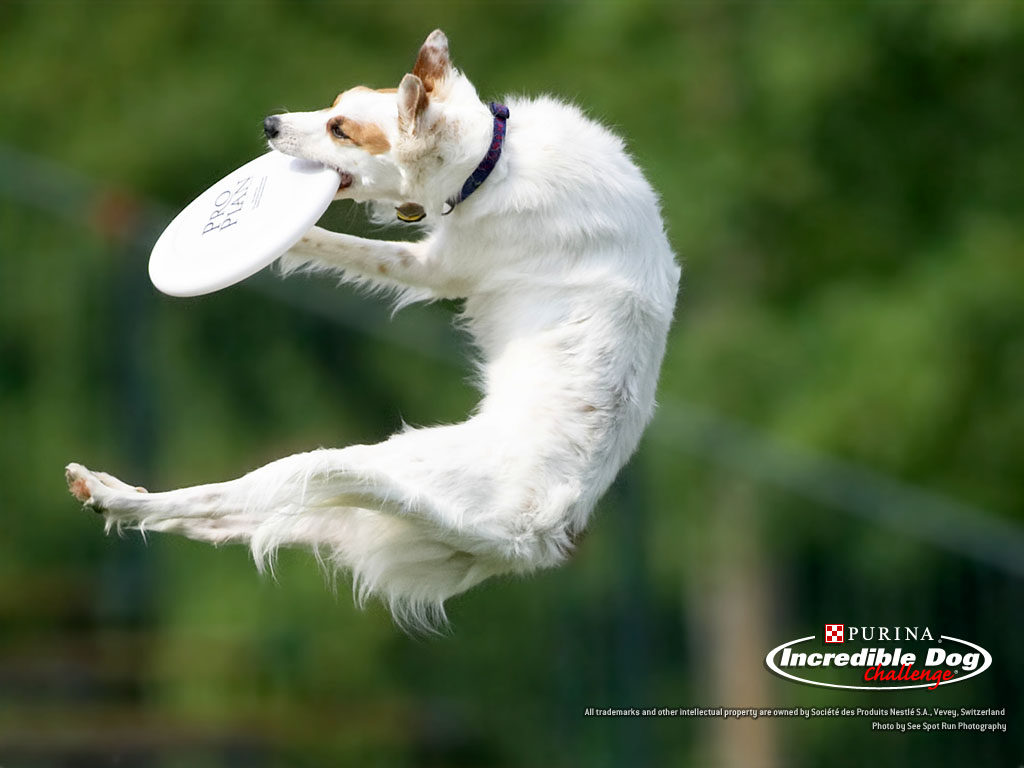
How to Catch a frisbee!!
 This is a brainstorm of ideas I have on the idea for my assignment
OMG...A flying hippo!!
 This was a funny tutorial because I got to make animals talk and I understood them like Doctor DoLittle. All I did was insert a background and 2 sprites. I then made a script for the duck to talk when the person clicked it. So it wasn't too fast or too slow I just made the words viewed for a 2 second period of time.
Sunday, November 22, 2009
Control the Kitty OR Kitty go Crazy!
 This tutorial was fun and Very simple. I just chose the key to choose, the direction it had to point in when that arrow was pressed. I needed it to actually move when it was pressed. I didn't want to make it move too fast so I said it should go 10 steps. I also did some editing to the background and made it look like the cat was walking on top of something.
Parrot flying.....flying Parrot
 This was a pretty easy task compared to the shark and fish. All I did was find the 2 costumes of the parrot make them switch but wait between each so it wouldn'tgo too fast. Again I had to make sure it wasn't on the rotate button but on the only face left or right buttton. It worked well but I need to find a way to make it smoother as it seems to be hesitating between every switch of the costumes. To do this I made the wait between costumes a bit shorter and had the parrot take more steps.
To make it a bit more interesting I added a background as well.
Tuesday, November 17, 2009
Chomp, Chomp
 This tutorial was a bit difficult but I discovered that if you double click on the score on the stage you have 3 options for what it looks like. One is just a number by itself, another says score and the actual score next to it, and another is where you can set the score back to 0.
 wait and move back -100 steps to let the small fish get away again. This was all done when the shark or the small fish bumped into each other.
 Tuesday, November 3, 2009
Round and ROund we go!!
 This one is so hilarious, who knew making a squirells head go round and round could be so much fun. This one was very simple all I did was make the squirells head move wherever the mouse was. The blue option called sensing only works when it is joined in with something like the mouse x with set whirl effect. So it didn't only whirl once I made it go forever.
Gliiiiiiiiide!!
 This was so cool I really liked it. Instead of making a ghost glide I made a buttterfly glide because I realised that some sprites don't change colour like ghosts. I wanted to make the sprite change colour every time it hit an edge and the butterfly would change colour. I mad ethe gliding go forever and after I entered the co-ordinates and seconds I wanted it to glide for or how fast I wanted it to go I put the change colour after every one. I imported a flower background so it looked like the butterfly was sitting on each of the flowers.
Cat and Mouse
 I thought this cat and mouse one was too good not to take
Monday, November 2, 2009
Ya, Ya, Ya
 This was a tutorial that taught you how to move people's bodies and put a sound to it at the same time. I imported a person sprite and went to control and imported when v key pressed. Then went to the sound ection and imprted a song or vocal called Ya. After that I went to the pinky purple section and chose play ya until done, I went to the purple section whick was looks and set whirl to 50. You shouldn't put the wait on for too long because it will look wierd. So 0.25 is good. You then set whirl to so it doesn't keep whirling around and makes the human look unatural but just return it to it's normal position.
Is this all you need to do-Ya, Ya, Ya!!
Tuesday, October 27, 2009
OOOOOOOh pretty colours!!!
 There has been an amazing discovery if you right click and press save instead of print screening the scrpts column it just copies the script not the whole thing. This was a fun one although I thought I had to edit the butterfly sprite and change it myself ut it's quick and easy. All I did was go to the control section and press the orange icon that says when space key pressed although you can choose any key (right). Then I went to Looks and press the change colour effect by 25. AND....
OOOOOh pretty colours!!!
Angry Ghost Happy Ghost
I looked at the first tutorial and it seemed pretty simple. I watched some videos on youtu be of how to use scratch as well. The first things I did was insert a ghost sprite. I wanted to make the ghost lokk angry as well but there was no angry ghost sprite so I edited the costume and drew some angry eybrows. I then inserted a background that I learnt from the videos that I watched. I then said when clicked in control, forever. Sitched to costume number 1 in looks, wait 1 second, flip 90 degrees in sensing. Then I switched to costume 2, wait 1 second and turn 90 degrees. It keeps you laughing.
Monday, October 26, 2009
The 7th Window

1.)What versions is Windows 7 available in?
There are 6 versions
-Home premium-Professional-Ultimate-OEM-Enterprise and Startup
2.)Describe some of the features of the new task bar.
-You can mouse over one program and all the windows associated with it will appear
-You can hover over a program for full size and click on it to bring to front
-There are large easy to see icons
-You can have 2 windows to fill the desktop size
-Big Button size for easier click, click, clicking away. This is very helpful for people who have touch screens
3.)What are jump lists and how are they useful?
Jump lists are where you right click or left click and drag any program icon that is on the ask bar to see a list of files that you've used lately in that certain program. It is useful as it helps make recently opened and used files easier to get to.
4.)How can one quickly size 2 windows to fill the desktop side by side?
All you do is drag one task thataway(left side of screen) and another to the other thataway(rught side of screen). They will automatically resize to haplf of your screen each. If you drag it away from the edge it will return to normal size.
5.)Research the 9 multi touch gestures that Windows 7 uses.
These gestures can be used for people who have windows 7 and are touch or non touch screen users.
Tap and Double Tap-clicking and double clicking
Panning with Inertia- scrolling, moving the pae up or down with your fingers, sometimes it has a little bounce at the end to tell you it's the bottom of the page
Selection /Drag- like a mouse drag and selection but moving your fingers across the screen. It is used to drag icons around the desktop, move windows and select text.
Press and Tap with second finger- like right clicking but using your second finger
Zoom-like the Ctrl key+Scrolll wheel. You pinch 2 fingers together or apart to zoom in or out of a document. Useful for reading things on a small laptop. Works in applictaions that support mouse wheel zooming.
Rotate-touch 2 spots on a digital photo and twist to rotate it. Move 2 fingers in a different direction or one finger can pivot around another. Applications need to add code to support this.
2 Finger Tap-tapping with 2 fingers zooms in around the middle of where you tapped. It can also restore to the default zoom. It is really useful for zooming in on hyperlinks. Applications need to add code to support this.
Press and Hold- same as right click. Press doen on the screen and release after the animation has appeared. Same as press and tap.
Flicks-flicking left or right to go forward or backward in a browser and other applications. It works in applications that support back and forward.
6.) What is XP mode. What users would find this feature most useful?
XP mode is used to run older programs and is useful for prople who work with 10 thousand million documents and needs to find them faster. It makes longer snippets, so searching for them is easier. It gives you more information and highlights the snippet more clearly.
7.)What feature related to removable drives has Windows 7 removed in a bid to increase security.
When you plug your USB or hard drive in it doesn't run them automatically anymore so there is less infections.
8.) What are the minimum hardware requirements for Windows 7.
1GHz processor, 1 or 2GB RAM, 16-20GB of free space on your hard drive and a directX 9 graphics device.
9.) What observations does the article offer regarding performanc for Windows 7?
-Sometimes it is the slowest out of Windows XP and Vista
-It is the fastest to shutdown
-Windows 7 RTM ties with XP for Itunes encoding
-Slower than XP and Vista for booting up cold by a bit more than 1 second
-Feels faster when loading programs, opening the control panel, dragging icons, files and folders around than XP
Monday, October 19, 2009
Why doesn't this thing do what I want it to DO?


This is a flow chart of how an air conditioner works. It's not perfect because it doesn't have an end but it's pretty good.

Tuesday, September 29, 2009
Scrappy the Online Dog Blogger came through

Tuesday, September 22, 2009
Alelluia!!!
 Angels are singing finally I finished my scrapblog, It was so hard to STOP personalising I was addicted to it I feel as if I need to go to one of those groups where you have confessions of what you are addicted to. The information was the hardest to find but eventually I got there I even added videos. I really like the turnout.
Bibliography
ehow, viewed-6th of September
http://www.ehow.com/how-does_4572304_computer-monitor-work.html
Ezine Articles, viewed-6th of September
http://ezinearticles.com/?Types-of-Monitors&id=175963
Harvey Norman, Viewed-8th of September
http://www.harveynorman.com.au/m/products/computing/computers/lcd-monitors.html?gclid=CNG4w8Xzs50CFRcjawodbzYQiA
TigerDirect.com, Viewed-8th of September 2009
http://www.tigerdirect.com/applications/category/category_tlc.asp?CatId=12&name=Monitors
Youtube.com, Viewed-11th September 2009
http://www.youtube.com/watch?v=K_vHwfDNGdg&feature=related
Microsoft, viewed-11th of September 2009
http://www.microsoft.com/middleeast/piracy/how_types.mspx
Emsi Software, Viewed-15th of September
http://www.emsisoft.com/en/kb/articles/tec021110/
HowStuffWorks, viewed-15th of September
http://computer.howstuffworks.com/serial-port.htm
Open Discussion, viewed-15th of September 2009
http://www.trap17.com/index.php/types-ports_t38817.html
cnet australia, viewed-18th September 2009
http://www.cnet.com.au/what-is-bluetooth-240091501.htm?omnRef=http%3A%2F%2Fwww.google.com.au%2Fsearch%3Fhl%3Den%26rlz%3D1R2GGLL_en%26q%3DWhat%2Bis%2BBluetooth%26meta%3D
Blutooth, viewed-18th September 2009
http://www.bluetooth.com/Bluetooth/Technology/Works/
Youtube.com, Viewed-18th of September 2009
http://www.youtube.com/watch?v=RQprZ8rhjzU
Tuesday, August 25, 2009
We Put the 'U' in CP'U'!!
1.)
 ck the program that is opened right back up again. This is why the execution cores are really good at multitasking which is when the CPU can perform different jobs and run different programs at the same time.
 It has a massive amount of power for a tiny little thing and the company think it will be a big hit.
Thursday, August 20, 2009
Which Candidate wins
Nicole and I have voted today. And the winner is................Scrappy the Online DogBlogger. We discussed it's performance and decided that we would have fun personalizing it and it would be engaging for the reader.
Monday, August 17, 2009
Scrappy the online DogBlogger

Good Things about Scrappy
-Heaps of applications to personalise and easy to use
-visually asthetic or eye catching
-Fun to personalise to make us more enthusiastic about our work
-Nicole and I can both log on and edit at the same time so we are able to get more work done
-Soon there will be the ability to print the scrap blog just in caswe sir is unable to view it
Bad Things about Scrappy
-There is no menu to tell the reader the content
-Some appl;ications you have to pay for
-It takes a fair bit of time to personalise
-It's more of a slideshow type blog
Overall Scrappy is quite good

